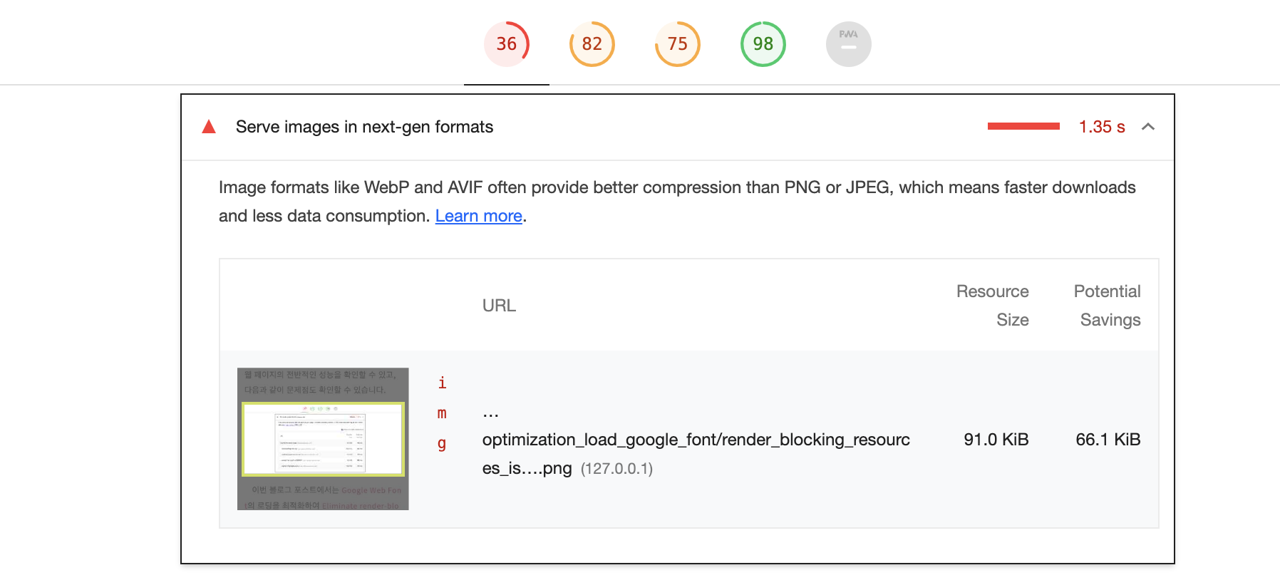
Google’s Chrome browser provides a feature called Lighthouse that can measure the performance of web pages. Using this feature, you can check the overall performance of a web page and identify issues like the following.
In this blog post, we’ll learn how to solve the Serve images in next-gen formats issue by optimizing image formats on web pages.
avif and webp Formats
To solve the Serve images in next-gen formats issue, you need to provide images in avif or webp format. Images in avif and webp formats are image formats supported by most modern browsers except IE.
Generating avif and webp Format Images with Python
In this blog post, we’ll learn how to generate images in avif and webp formats from jpg or png format image files using Python.
To generate images in avif or webp format using Python, you need to install the Pillow and pillow-avif-plugin libraries. Use the following command to install the Pillow and pillow-avif-plugin libraries.
pip install Pillow pillow-avif-plugin
Pillow is a library for handling images in Python, and pillow-avif-plugin is a library that helps save images in avif format when changing image formats using the Pillow library.
Then loop through all files and change the file format. To change the file format and also change the filename to match the format, I prepared the filename using os.path.
...for f in files: title, ext = os.path.splitext(f) webp_file = title + '.webp' avif_file = title + '.avif' ...
Then, check if a webp format file exists, and if it doesn’t, convert the existing file to webp format and save it.
...for f in files: ... if os.path.isfile(webp_file) == False: img = Image.open(f) img.save(webp_file, format='webp') img.close() ...
Similarly, check if an avif format file exists, and if it doesn’t, convert the existing file to avif format and save it.
...for f in files: ... if os.path.isfile(avif_file) == False: img = Image.open(f) img.save(avif_file, format='AVIF' ) img.close()
With this, we’ve created a Python script that converts jpg or png format image files to avif and webp formats.
Generating avif and webp Files
Now let’s run the optimization_images.py file we created to generate avif and webp format files. Run the following command to execute the Python script to generate avif and webp format files.
python optimization_images.py
Then you can see the list of image files and confirm that avif and webp format files are being generated.
Now let’s learn how to use the generated avif and webp format files on web pages. To use multiple image formats on web pages, you need to use the <picture /> and <source /> tags. Set up the <picture /> and <source /> tags as follows to load avif and webp formats.

By using the <picture /> and <source /> tags like this, the browser will download and display the image in a format it supports.
Conclusion
We’ve learned how to generate new image formats avif and webp files for web page performance improvement, and how to optimize image loading using the <picture /> and <source /> tags. Since this is a frequently pointed out issue in Lighthouse, it would be good to remember this well. If you’re curious about how to run Lighthouse in a local or CI environment rather than in a browser, please refer to the link below.