Contents
Outline
After changing in-app subscription logic, you want to see the purchase flow with your own eyes. But preparing a physical device and a sandbox account is a hassle, and if you simply run the app on the Simulator, product queries may fail outright or an Apple Account sign-in prompt may appear.
With Xcode’s StoreKit Configuration file, you can run a fake store locally without connecting to the App Store. Product queries, the purchase sheet, and purchase restoration all work inside the Simulator, and nothing is actually charged.
This post walks through how I tested the auto-renewable subscription of a Flutter app (using the in_app_purchase package) this way.
What the Simulator Can and Cannot Verify
Let’s set the scope first. Transactions created with a StoreKit Configuration file are signed locally by Xcode, not by Apple. So if your app sends receipts to its own server, which then verifies them with Apple, that server verification will not pass.
What you can verify
- Fetching product information and displaying the price
- Showing the purchase sheet, canceling a purchase, and a successful local purchase
- Calling purchase restoration (
restorePurchases()) and its result (such as the notice shown when there is no subscription) - That calling restore in the background at app launch shows no dialog or sign-in prompt
What you cannot verify
- Anything after passing server verification (being shown as a subscriber, automatic recovery after reinstalling, and so on)
- Behavior with a real App Store account or in the sandbox environment
The latter needs to be checked separately on a physical device with a sandbox account.
Creating a StoreKit Configuration File
Open your Flutter project’s ios/Runner.xcworkspace in Xcode. Choose File › New › File from Template… from the menu and type storekit in the search field; the StoreKit Configuration File template appears.
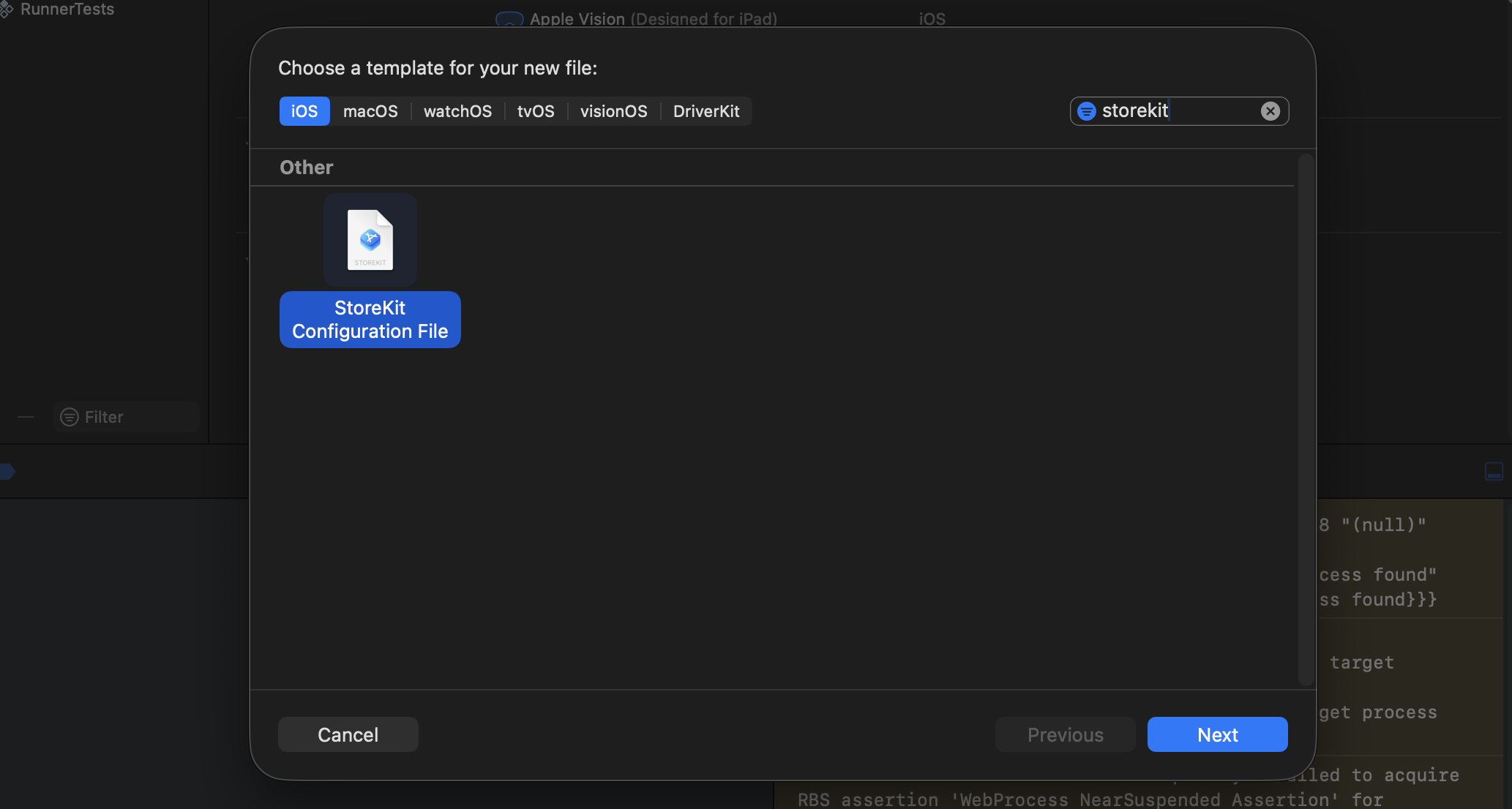
Press Next, then choose a file name and location. Check two things here.
- Sync this file with an app in App Store Connect: When checked, products registered in App Store Connect are imported. This requires a developer account signed in to Xcode. In this post I left it unchecked and added the product by hand.
- Targets: Uncheck the
Runnertarget. This file is just a test setting, so it does not need to be in the app bundle.
Adding a Subscription Product
Open the .storekit file you created, and choose Add Auto-Renewable Subscription from the + button at the bottom left of the editor. Once you name the subscription group, a subscription product is created inside it.
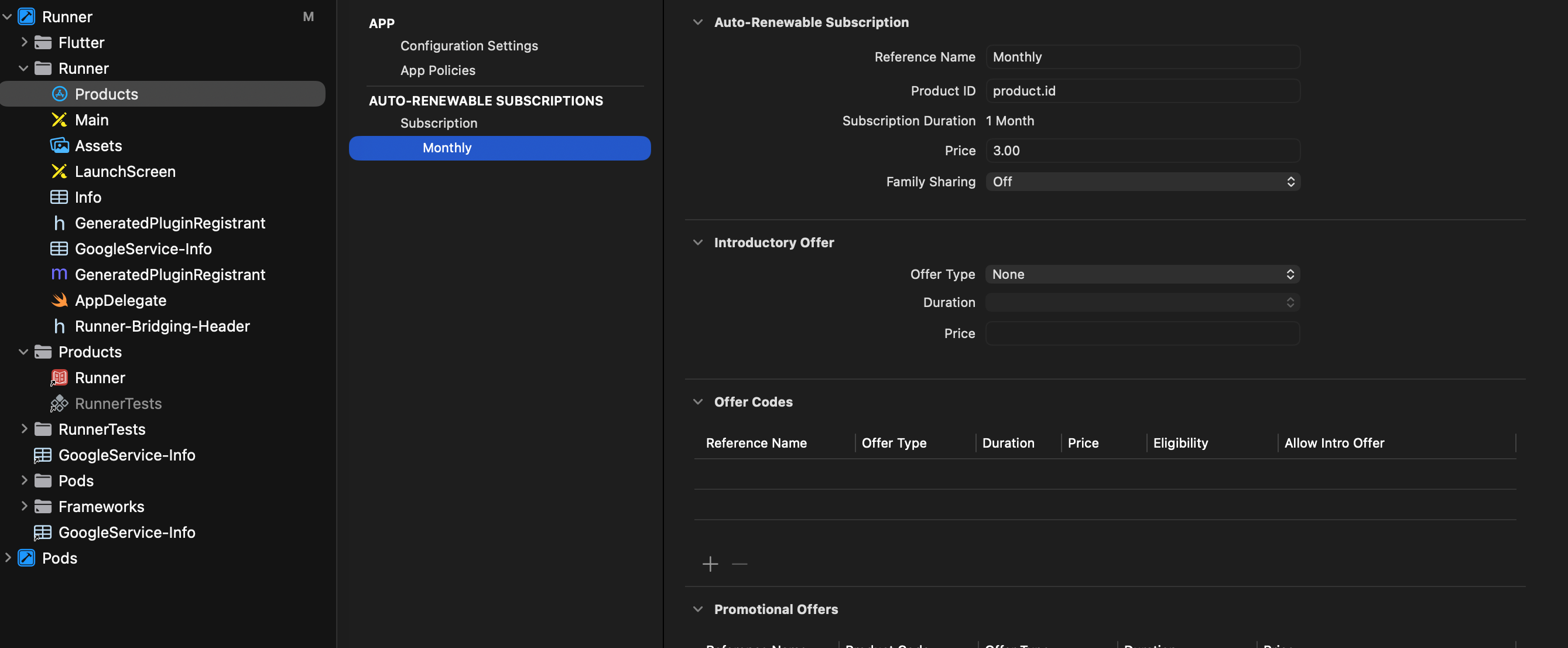
Fill in the following fields on the right.
| Field | Value |
|---|---|
| Reference Name | A name for your own management (e.g. Monthly) |
| Product ID | Exactly the same value as the product ID your app queries |
| Subscription Duration | Renewal period (e.g. 1 Month) |
| Price | Price to display (e.g. 3.00) |
The product.id in the screenshot is a placeholder. Enter the real product ID your app queries with InAppPurchase.instance.queryProductDetails(). If the values differ, the product query returns nothing and the purchase screen cannot open.
Attaching It to the Scheme
Open Product › Scheme › Edit Scheme… from the menu, select Run on the left, and go to the Options tab. In the StoreKit Configuration dropdown, choose the file you just created.
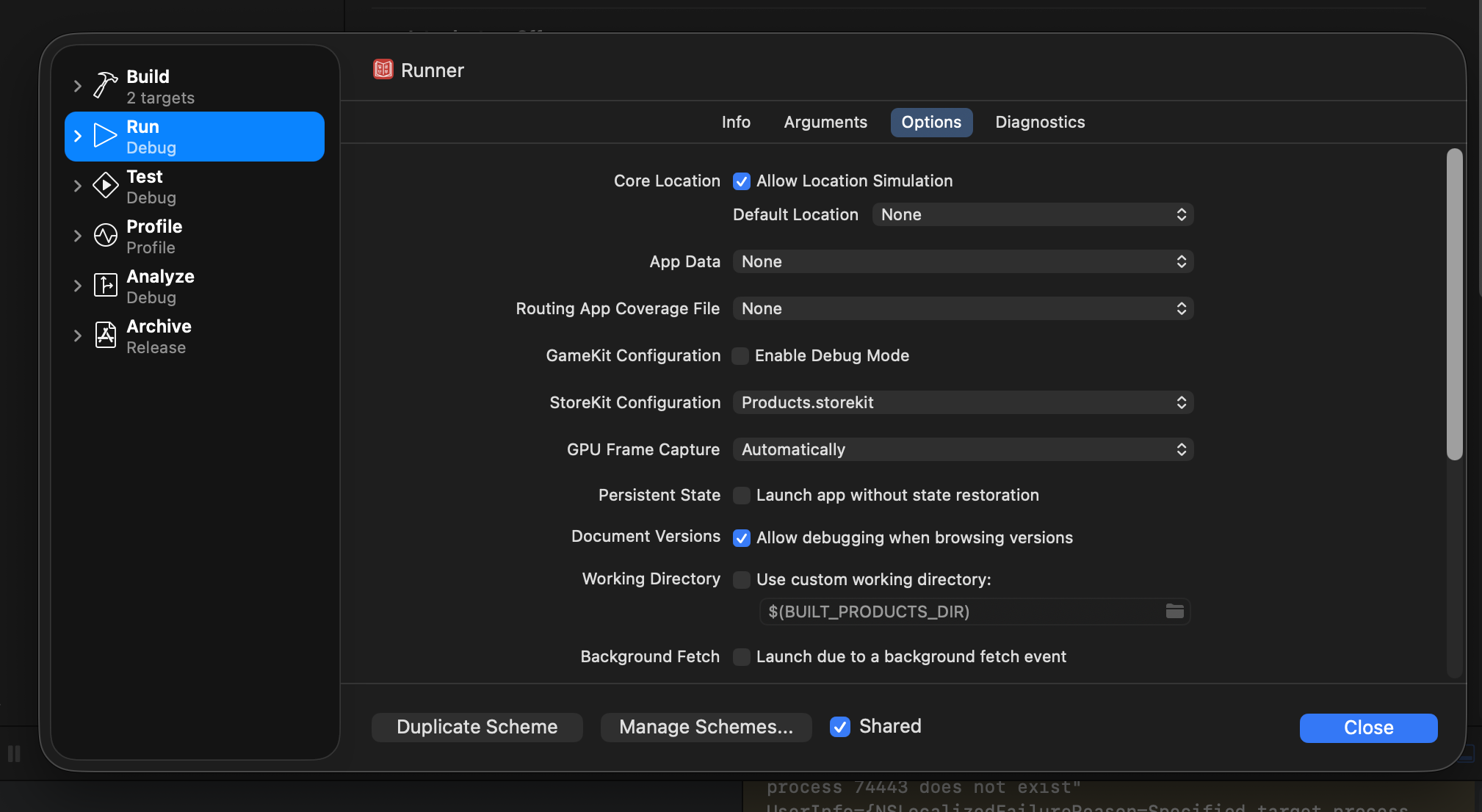
If the file name is shown in red, Xcode could not find the file at that path. If you run in this state, the setting is not applied and the Simulator tries to reach the real store, so an Apple Account sign-in prompt may appear. See Pitfalls below to add the file to the project, then select it again.
Running and Checking
Select a Simulator and run the app with Xcode’s ▶ button. In this post I ran it from Xcode to check.
When you tap the purchase button in the app, a purchase confirmation sheet labeled Xcode appears. If you see this sheet instead of a sign-in prompt, the StoreKit Configuration is applied correctly. The sheet also shows the text “For testing purposes only. You will not be charged…”.
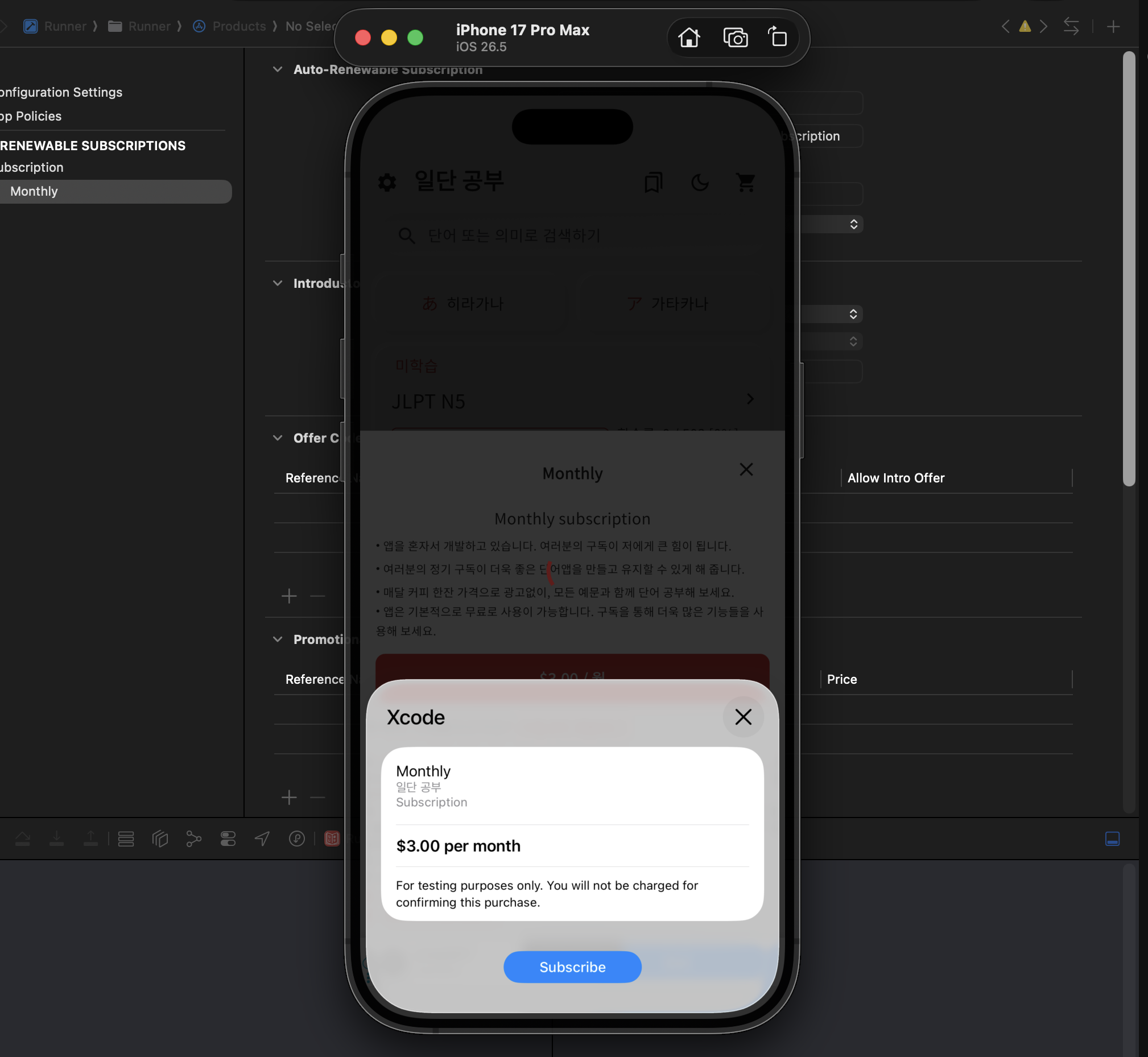
Tapping Subscribe shows a completion alert that reads [Environment: Xcode].
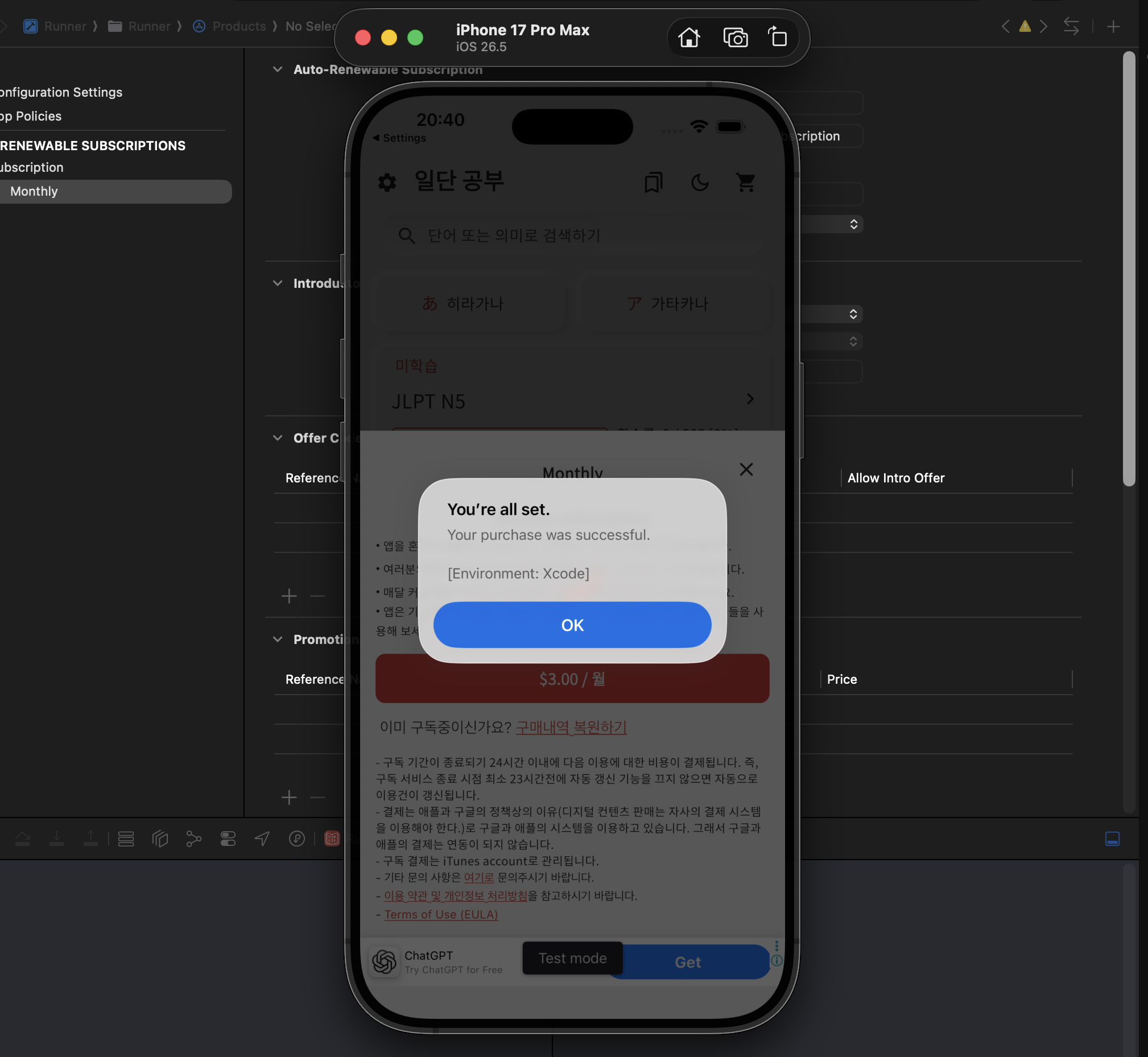
Other scenarios I checked this time:
- Silent restore at app launch: After launching the app for the first time and waiting a few seconds, no dialog or sign-in prompt appears. Deleting the app on the Simulator and running it again recreates the reinstall case.
- Canceling a purchase: Closing the purchase confirmation sheet returns to the previous screen without errors.
- User-initiated restore: Tapping “Restore purchases” with no subscription shows a notice that there is no subscription.
- Server verification after purchase: The local purchase succeeds, but because it cannot pass server verification, the app does not switch to a subscriber. This is exactly the limitation described earlier.
Working with Transactions in Manage Transactions
While the app is running, open Debug › StoreKit › Manage Transactions… to see the list of transactions made on the Simulator.
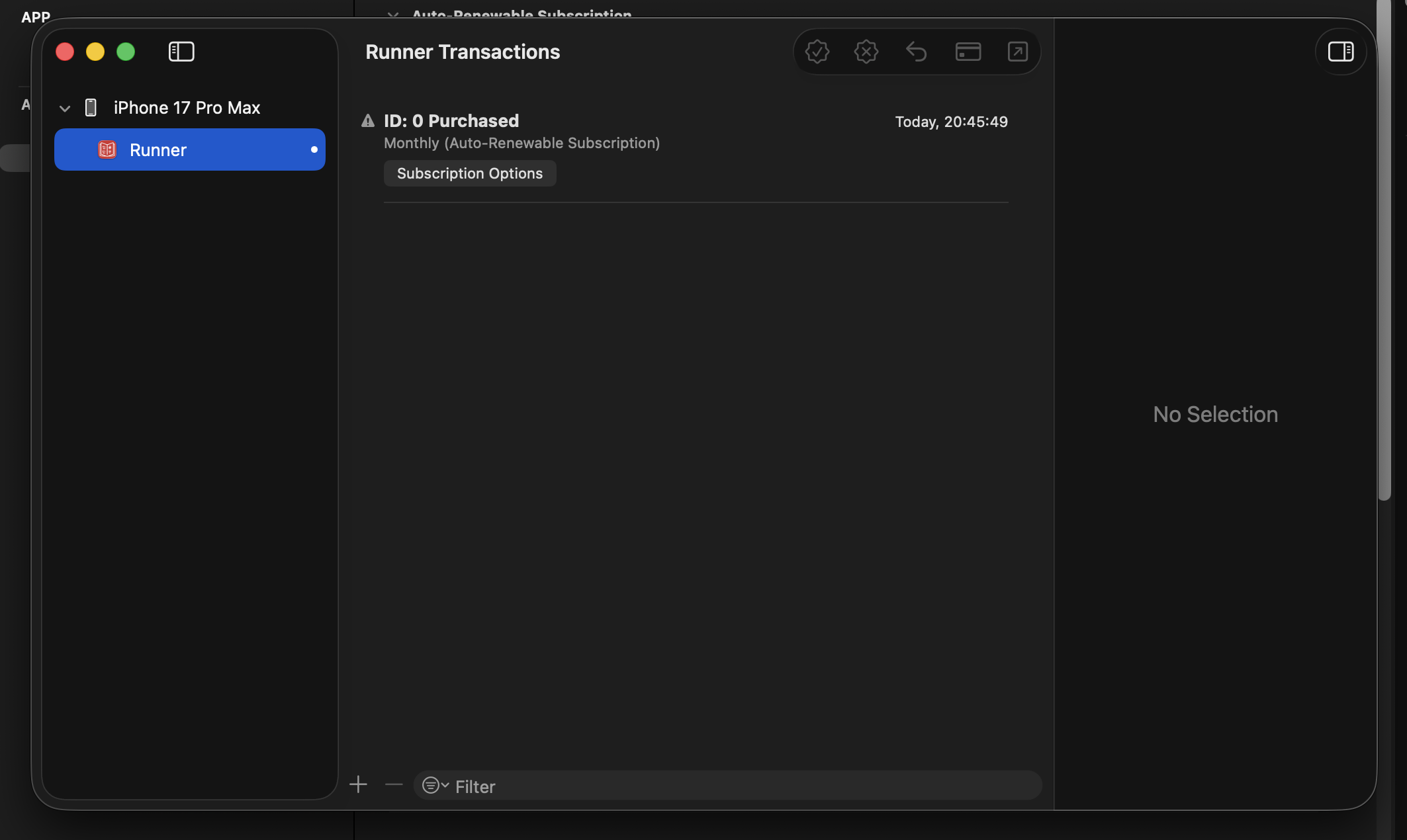
Here you can select a transaction and delete or refund it. To start a test over from scratch, deleting the transactions returns you to the state of “a user who has never purchased.”
If a transaction has a ⚠ icon next to it, selecting it shows the following message.
This transaction has not been finished by calling finish()It means the app has not finished the transaction yet. In in_app_purchase, calling completePurchase() is what calls finish() on the iOS side. If your app calls completePurchase() after server verification completes, the transaction stays unfinished like this until verification is done. iOS delivers unfinished transactions to the app again on the next launch.
Pitfalls
When the File Path Is Shown in Red
If you edit the scheme file (.xcscheme) by hand to add the path, the path format may not match and the name turns red. In that case, right-click the Runner folder in Xcode’s Project Navigator on the left and choose Add Files to “Runner”…, or drag the .storekit file from Finder onto the Runner folder to add it to the project. Then select the file again in the scheme’s StoreKit Configuration, and it goes back to the normal color.
Unintended Changes May Appear
Adding the file through Xcode may bring the following changes along with it.
- Depending on the options when adding, the file is copied into the project folder.
- Xcode automatically stages that file for commit in git.
- If the target is checked, the
.storekitfile is included in the app bundle’s resources andproject.pbxprojchanges. Xcode may also change the project file format (such asobjectVersion) at the same time.
If you don’t want local test settings in your team’s repository, check the changes with git status after testing and revert them.
git status --short
git checkout -- ios/Runner.xcodeproj/project.pbxproj
git checkout -- ios/Runner.xcodeproj/xcshareddata/xcschemes/Runner.xcscheme
On the other hand, if you want to share it with your team, you can commit the .storekit file and the scheme change with the target unchecked.
Wrap-Up
- Create a StoreKit Configuration file and add a subscription product with the same product ID as your app.
- Attach it under Edit Scheme › Run › Options › StoreKit Configuration. If it’s red, the file was not found.
- If the purchase sheet shows Xcode, the app is running against the local store.
- Product queries, purchase and cancel, purchase restoration, and background restore at launch can be checked on the Simulator.
- Because transactions are signed by Xcode, server-side receipt verification does not pass. Check everything after that on a physical device with a sandbox account.
- You can delete or refund transactions in Manage Transactions to reset state, and a ⚠ mark is a transaction whose
finish()has not been called yet.
Was my blog helpful? Please leave a comment at the bottom. it will be a great help to me!
App promotion
Deku.Deku created the applications with Flutter.If you have interested, please try to download them for free.