Table of Contents
Overview
In this blog post, we will learn how to set up Firebase’s App Check to verify that the app developed with Flutter is genuine and prevent unverified clients from accessing Firebase backend services (Firestore, Storage, Functions, etc.).
Blog Series
This blog is part of a series. Please check out other blog posts through the following links.
- [Flutter] Firebase Core
- [Flutter] Firebase Analytics
- [Flutter] Firebase Crashlytics
- [Flutter] Firebase App Check
- [Flutter] Firebase Performance
Creating and Setting Up Firebase Project
To use Firebase in Flutter, you need to create a Firebase project and install the firebase_core package. Please check the details through the link below.
Installing firebase_app_check
To use Firebase App Check in a Flutter project, you need to install the firebase_app_check package. Run the following command to install the firebase_app_check package.
flutter pub add firebase_app_checkActivating App Check in Flutter
After installing the firebase_app_check package, you need to activate App Check in your Flutter app. Modify the main.dart file as follows.
import 'package:firebase_core/firebase_core.dart';
import 'package:firebase_app_check/firebase_app_check.dart';

void main() async {
  WidgetsFlutterBinding.ensureInitialized();
  await Firebase.initializeApp();

  await FirebaseAppCheck.instance.activate(
    androidProvider: AndroidProvider.playIntegrity,
    appleProvider: AppleProvider.deviceCheck,
  );

  runApp(MyApp());
}
Set AndroidProvider.playIntegrity for androidProvider to use Play Integrity, and set AppleProvider.deviceCheck for appleProvider to use DeviceCheck.
Using App Check in Debug Mode
During development, there are times when you need to test on emulators or simulators instead of real devices. In this case, you can configure App Check for debug mode as follows.
await FirebaseAppCheck.instance.activate(
  androidProvider: kDebugMode ? AndroidProvider.debug : AndroidProvider.playIntegrity,
  appleProvider: kDebugMode ? AppleProvider.debug : AppleProvider.deviceCheck,
);
In debug mode, AndroidProvider.debug and AppleProvider.debug are used to generate debug tokens. The generated debug token is output to the console, and this token needs to be registered in Firebase Console.
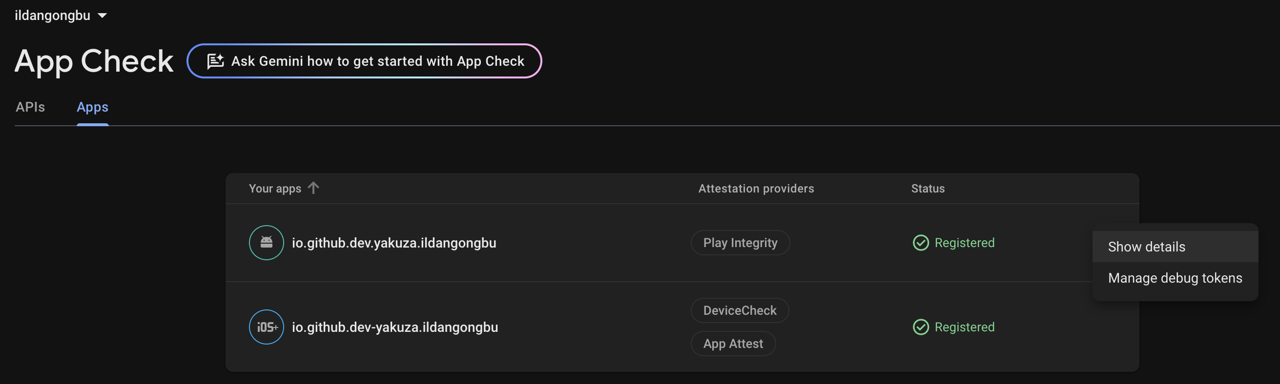
You can register debug tokens in Firebase Console by selecting App Check > Apps > Menu of the app > Manage debug tokens.
Android Setup
Google Cloud Platform Setup
To use Firebase App Check, you need to enable App Check in Google Cloud Platform. Access Google Cloud Console through the following link and enable App Check.
Then search for Play Integrity API.
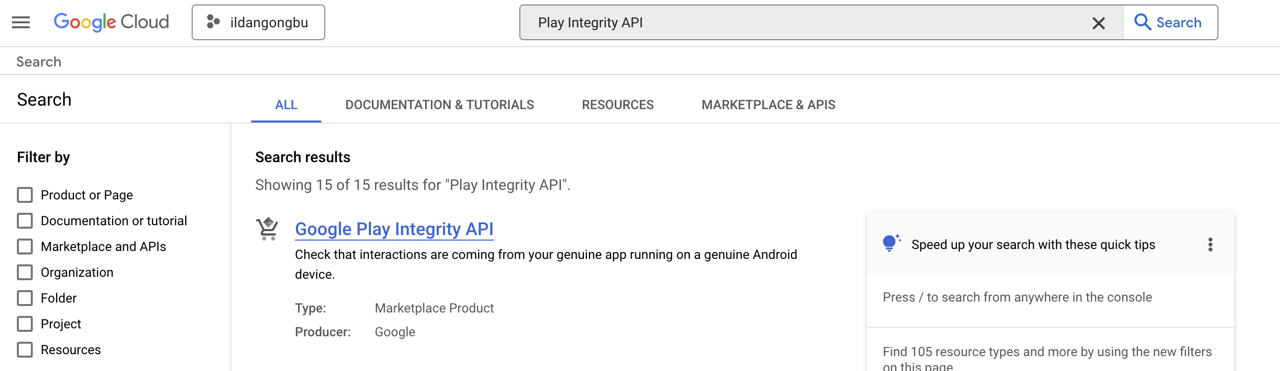
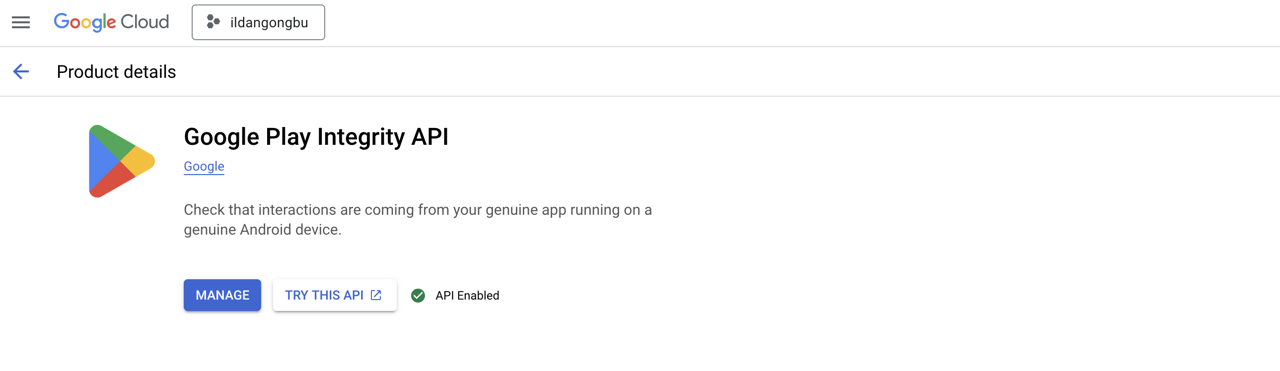
Select Play Integrity API from the search results and click the Enable button.
Google Play Console Setup
To set up Play Integrity, you need to configure the Play Integrity API in Google Play Console.
Linking Google Cloud Platform
First, go to Google Play Console and navigate to the App integrity menu of the app you want to set up Play Integrity for.
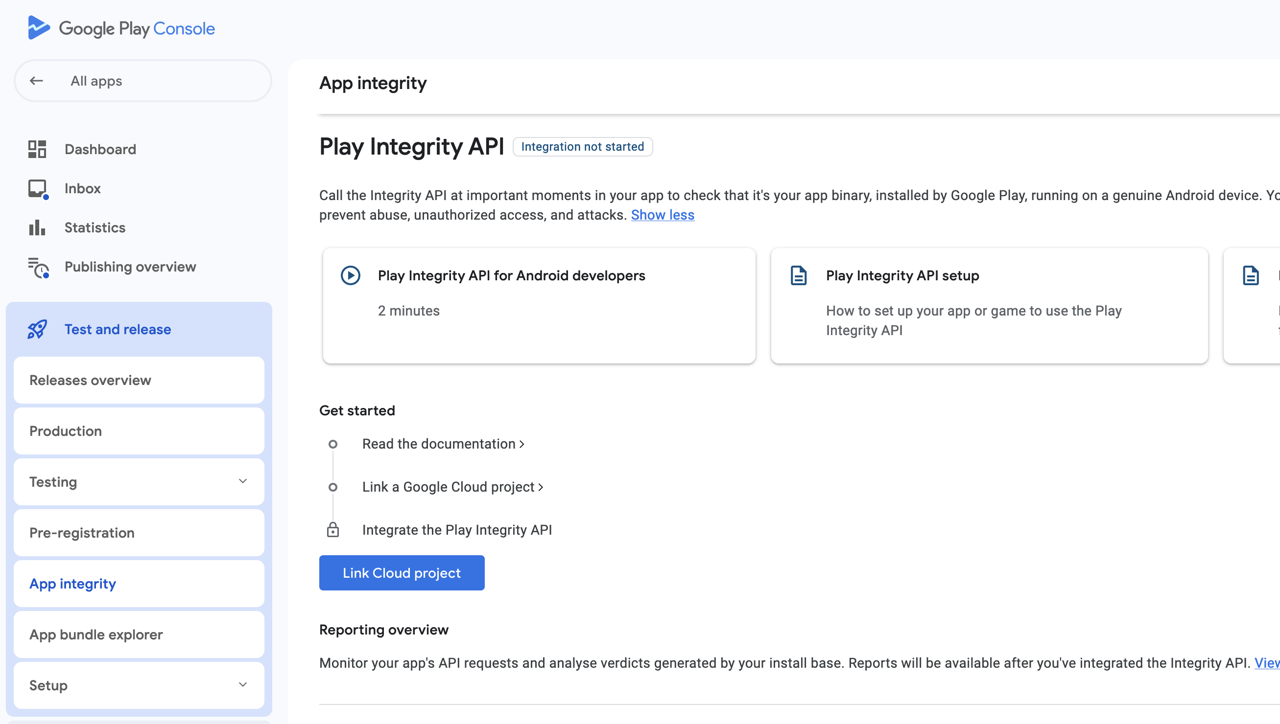
Select Link Cloud project at the bottom. Then you will see a screen to select Google Cloud project.
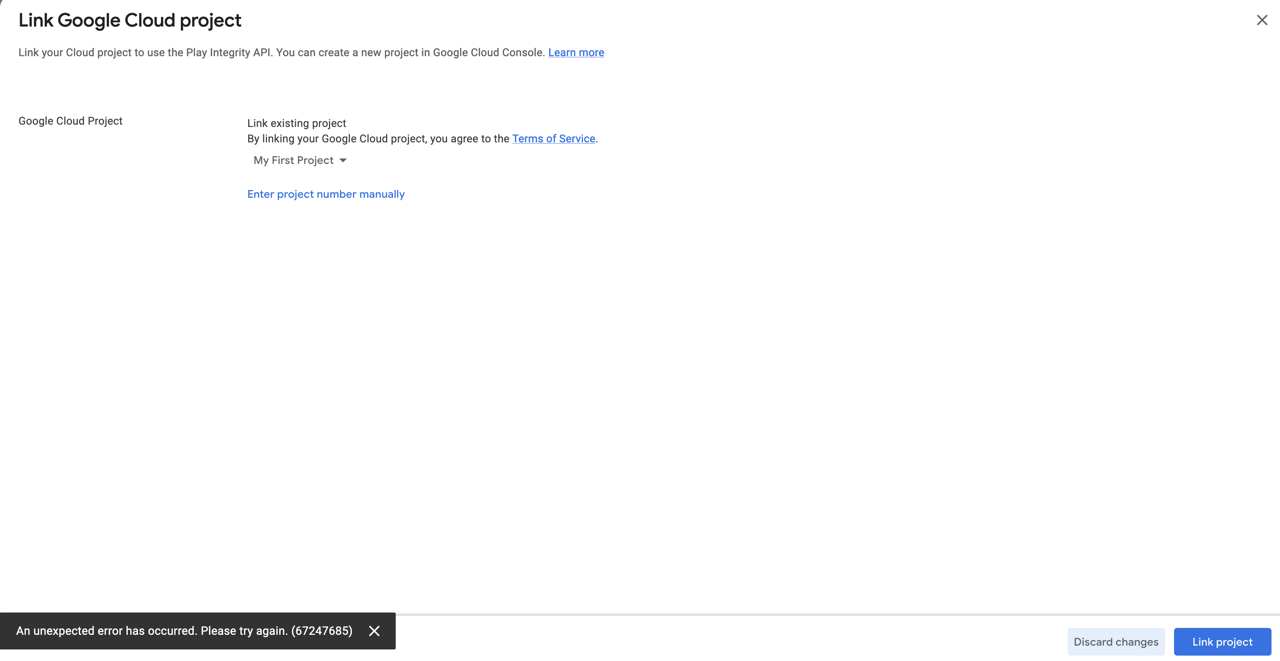
Now select the Google Cloud project for your app and click the Apply button to select the Google Cloud project. Once the Google Cloud project is linked, you can see the following screen.
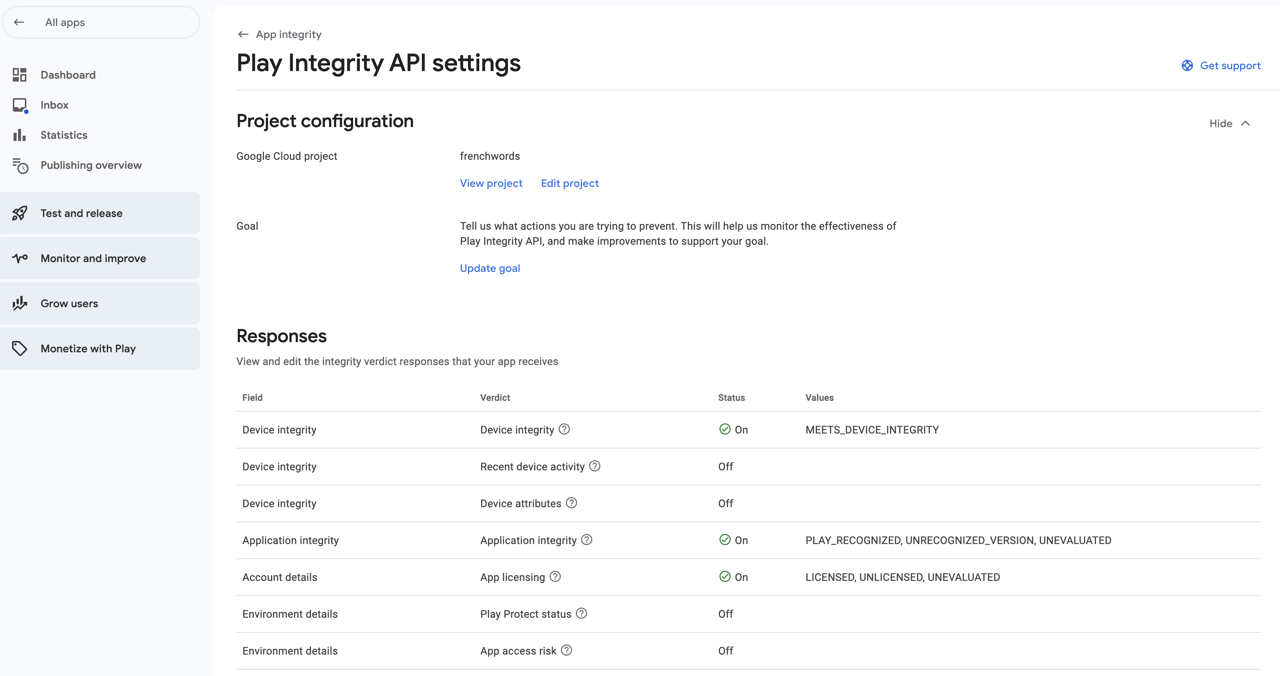
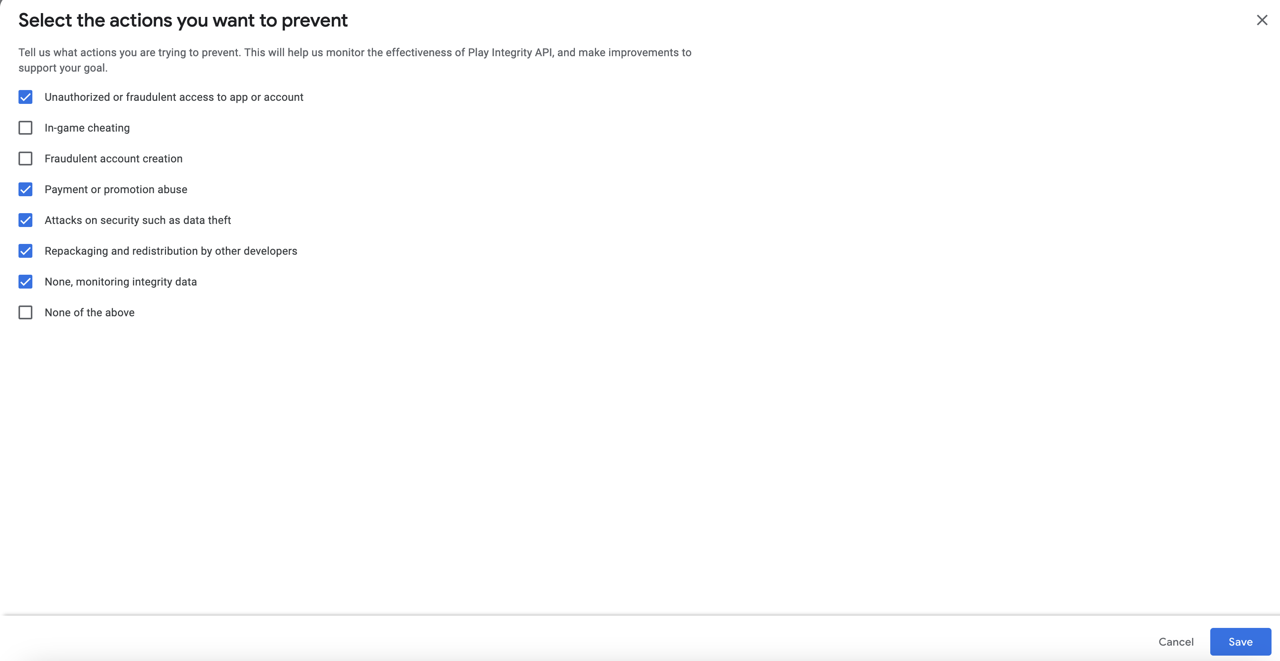
Now click the Update goal button on this screen to set the actions you want to protect through Play Integrity.
Setting Up Automatic Protection
Now you need to set up Automatic protection to protect your app.
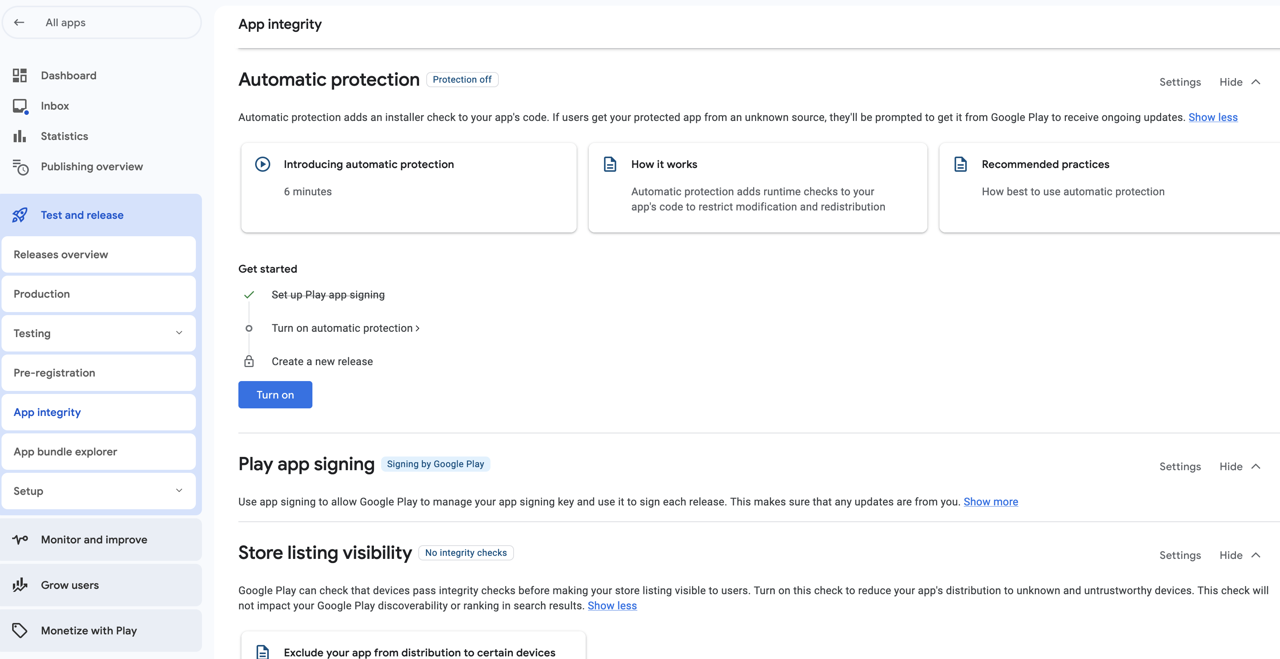
Click the Turn on button for Automatic protection on the App integrity page.
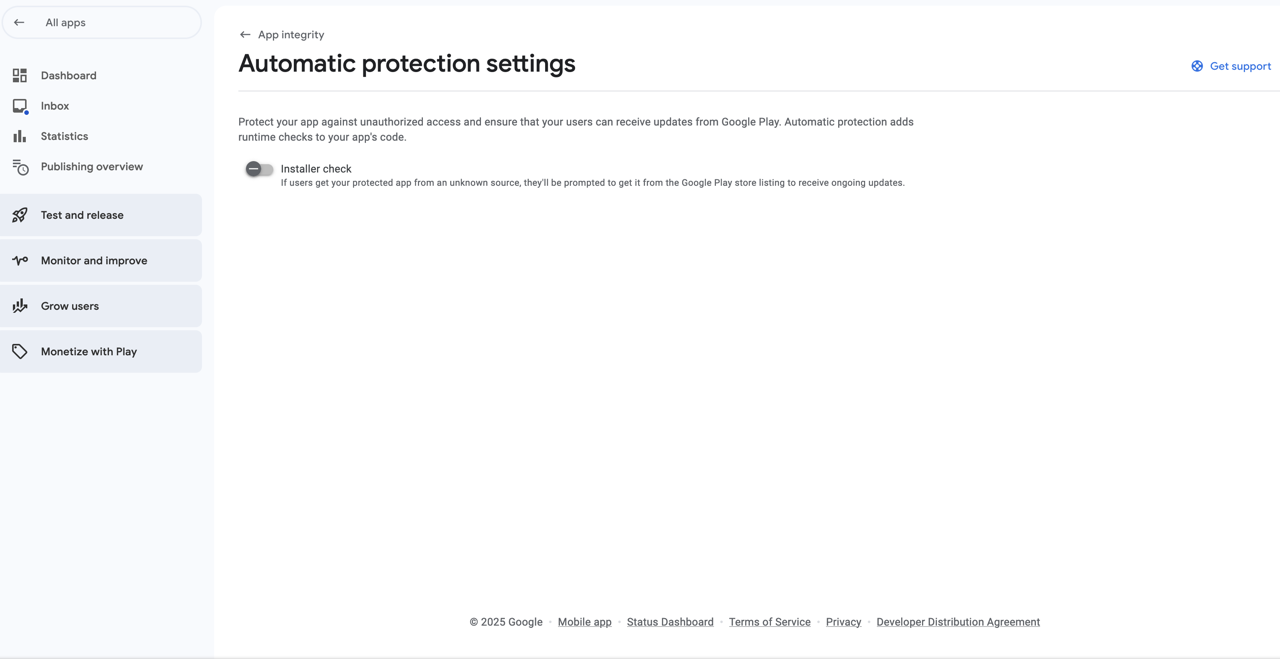
Now click Installer check to configure it. Then click the Save button at the bottom right to save the settings.
Store Listing Visibility
You can protect your app by setting up Store listing visibility.
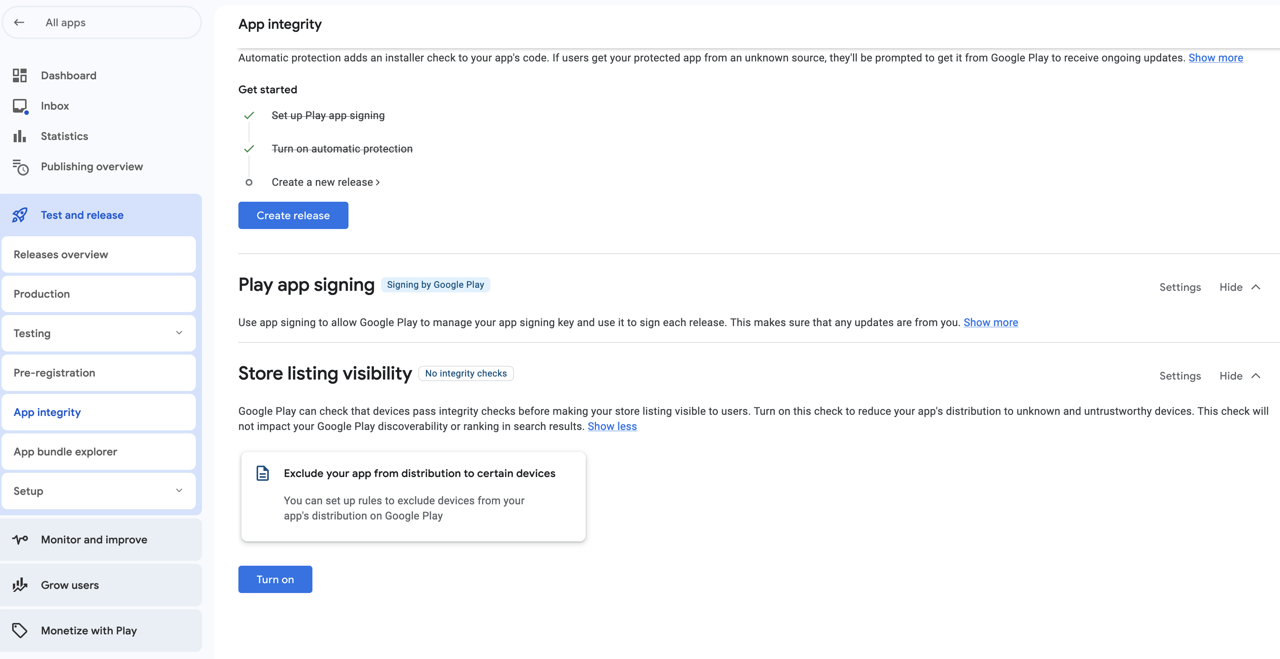
Click the Turn on button for Store listing visibility on the App integrity page.
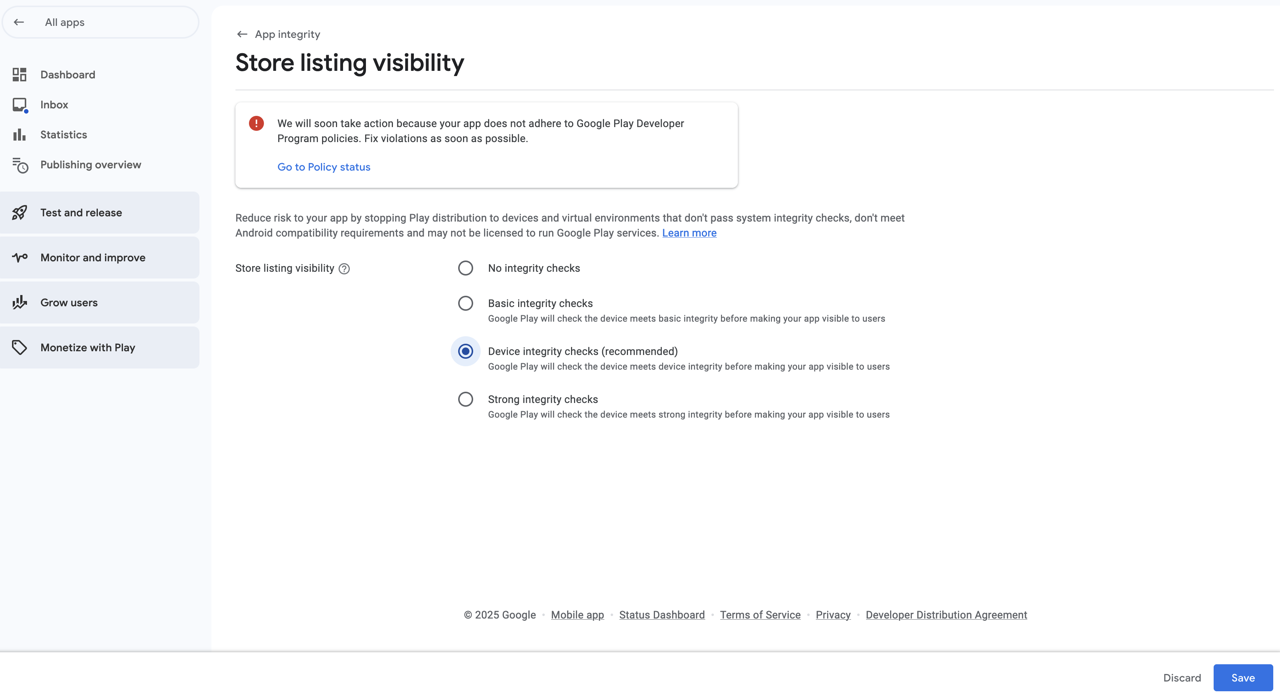
Then select Device integrity checks and click the Save button at the bottom right to save the settings.
Copying App Signing Key
To use Firebase App Check, you need to copy the app signing key (Play app signing) used in Google Play Console and register it in Firebase Console.
Click Settings in the Play app signing section to go to the App signing page.
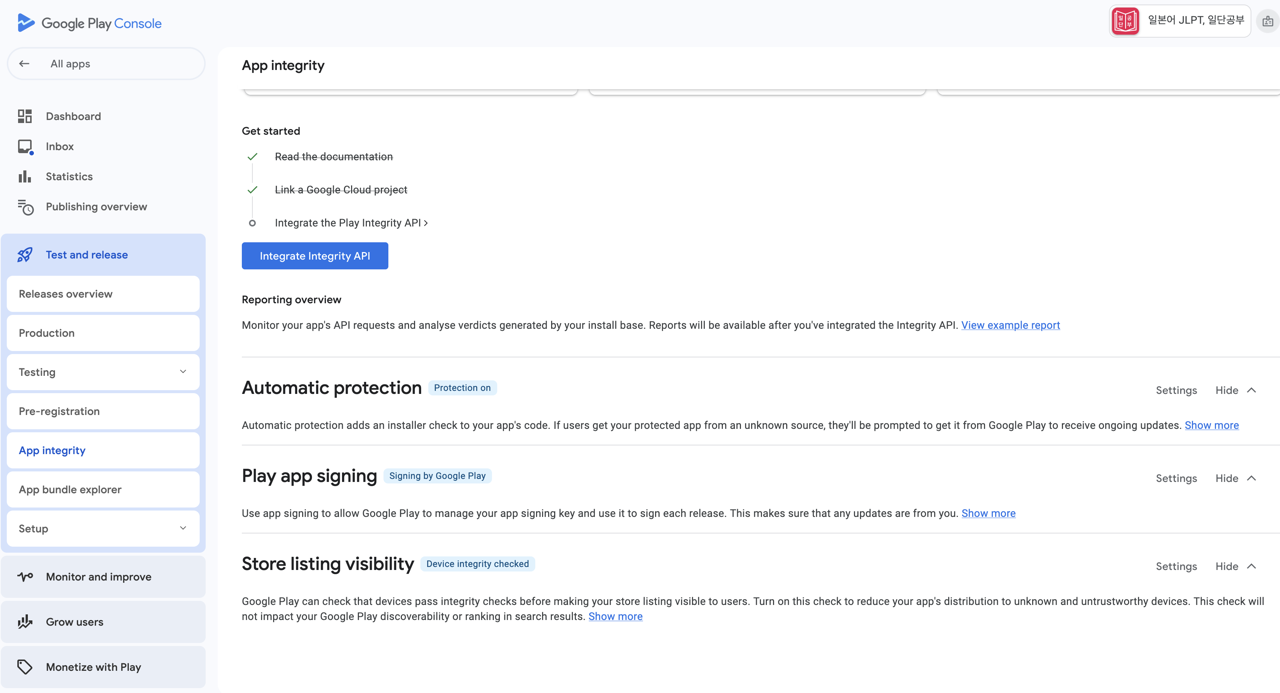
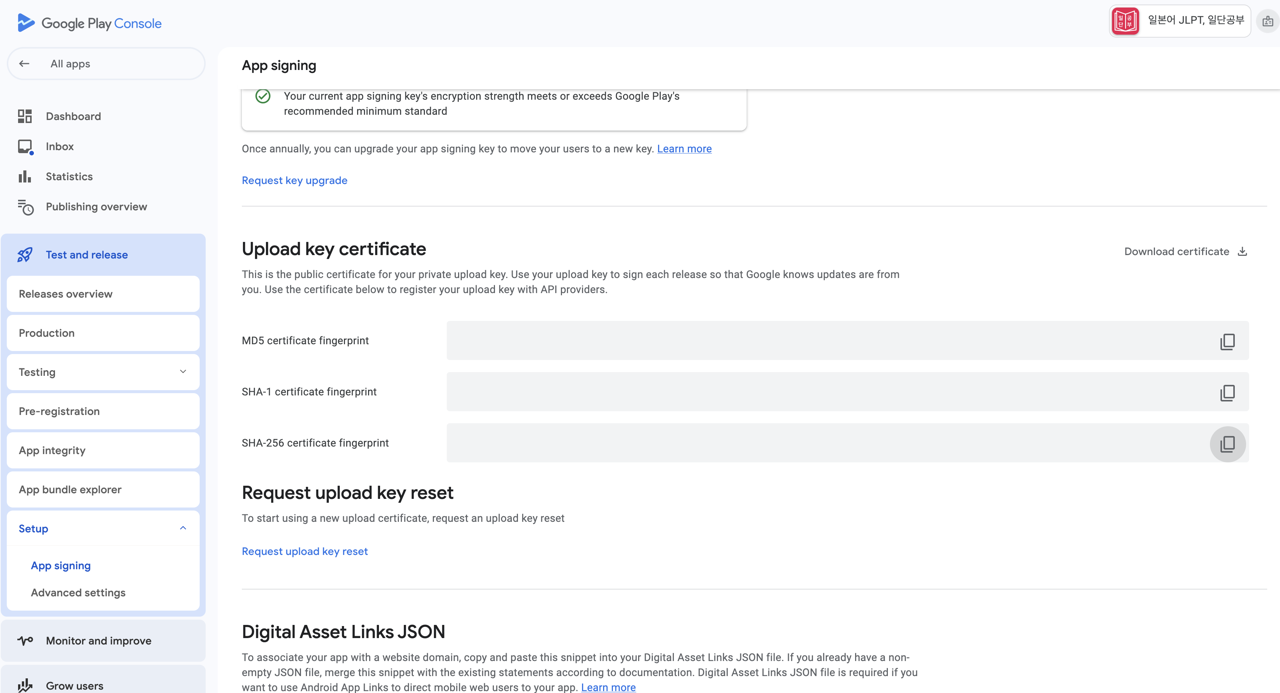
On the App signing page, copy the SHA-256 certificate fingerprint of the App signing key certificate. This will be used later when registering in Firebase Console.
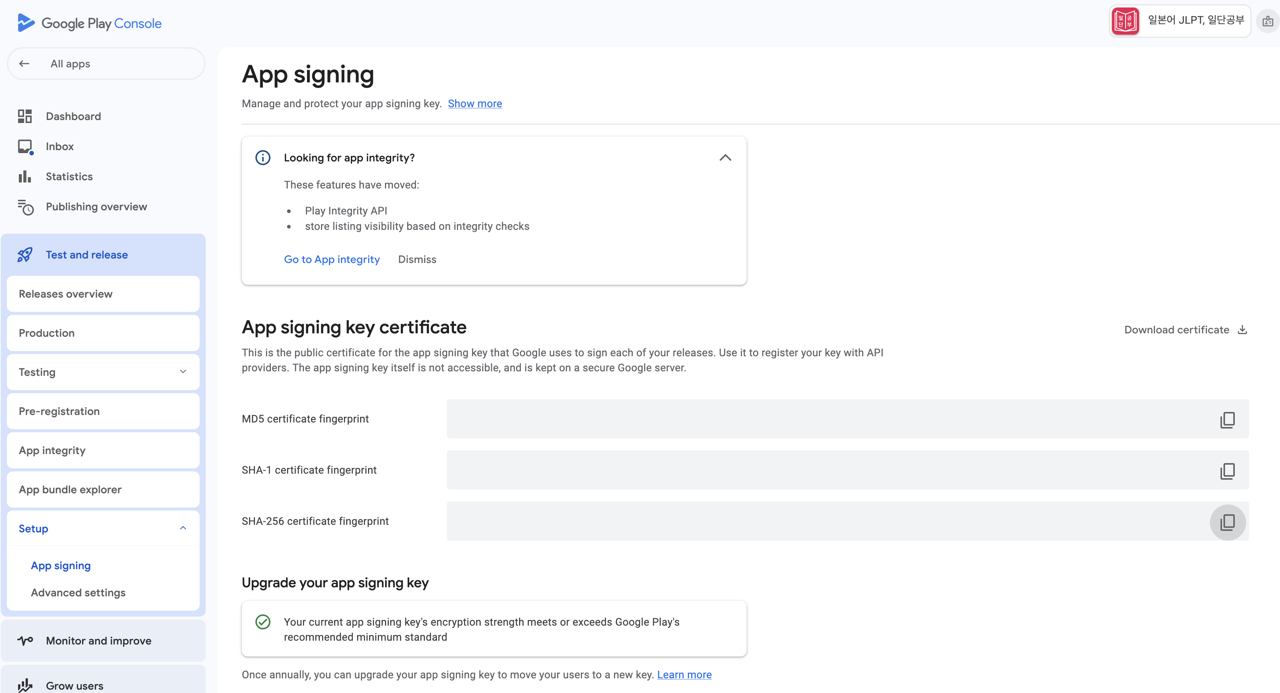
Then also copy the SHA-256 certificate fingerprint of the Upload key certificate at the bottom. This will also be used later when registering in Firebase Console.
iOS Setup
To use Firebase App Check, you need to set up Key ID and Team ID. Access Apple Developer to create a Key to use with Firebase App Check and to check the Team ID.
- Apple Developer: https://developer.apple.com/
After accessing Apple Developer, navigate to Account > Certificates, Identifiers & Profiles > Keys.
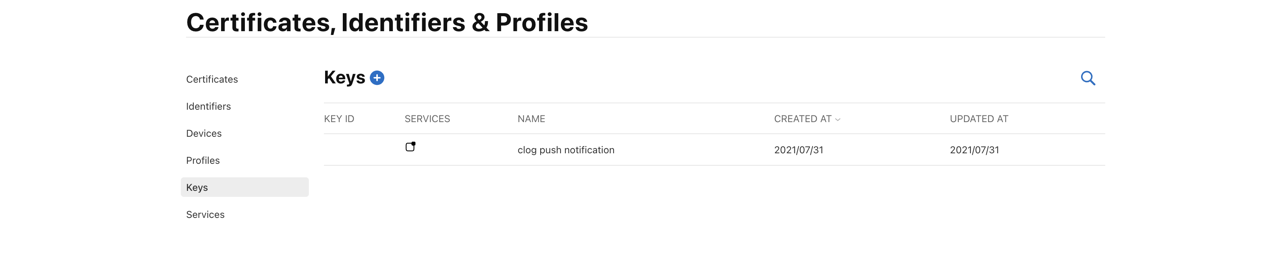
Click the + button next to Keys to create a new Key.
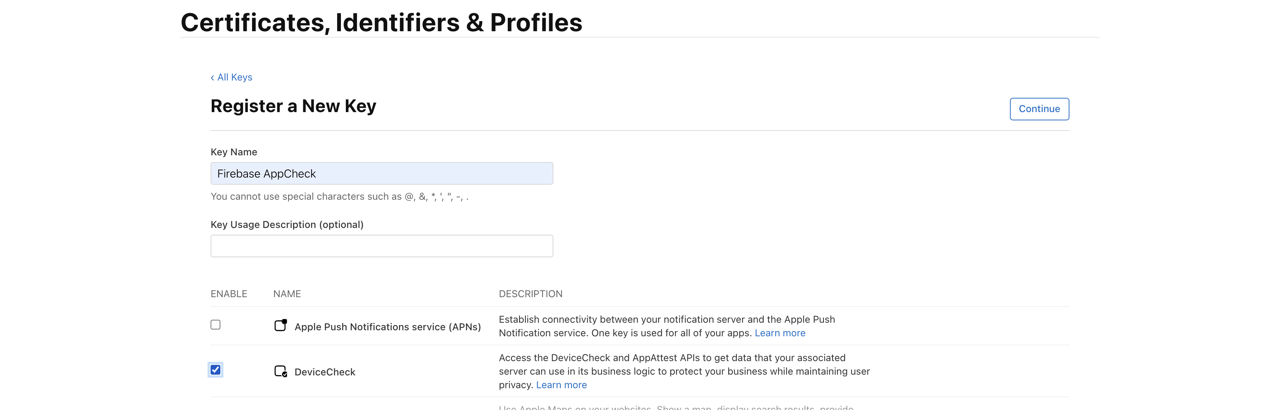
Enter the Key name, check DeviceCheck, and click the Continue button to create the Key.
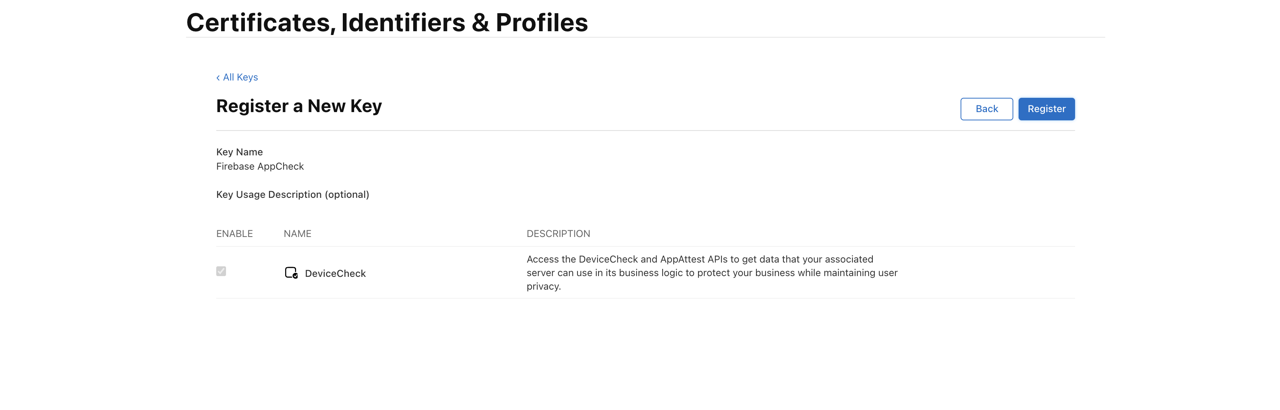
With the Key name entered and DeviceCheck checked, click the Register button to create the Key.
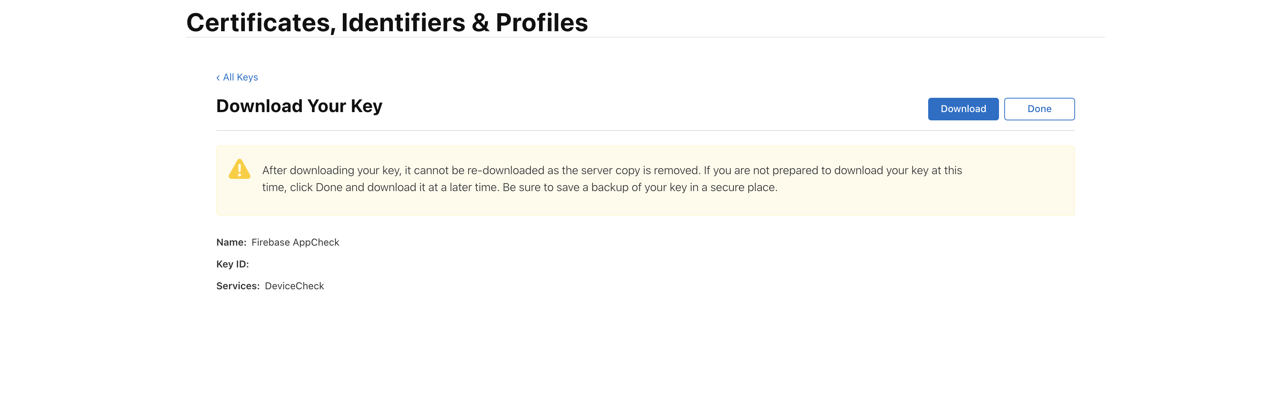
Finally, copy the Team ID at the top of the Apple Developer page.

We will register the downloaded Key file, Key ID, and Team ID in Firebase Console.
Firebase Setup
Once Android and iOS setup is complete, now set up Firebase App Check in Firebase Console. Go to Firebase Console and select App Check for the app you want to configure.
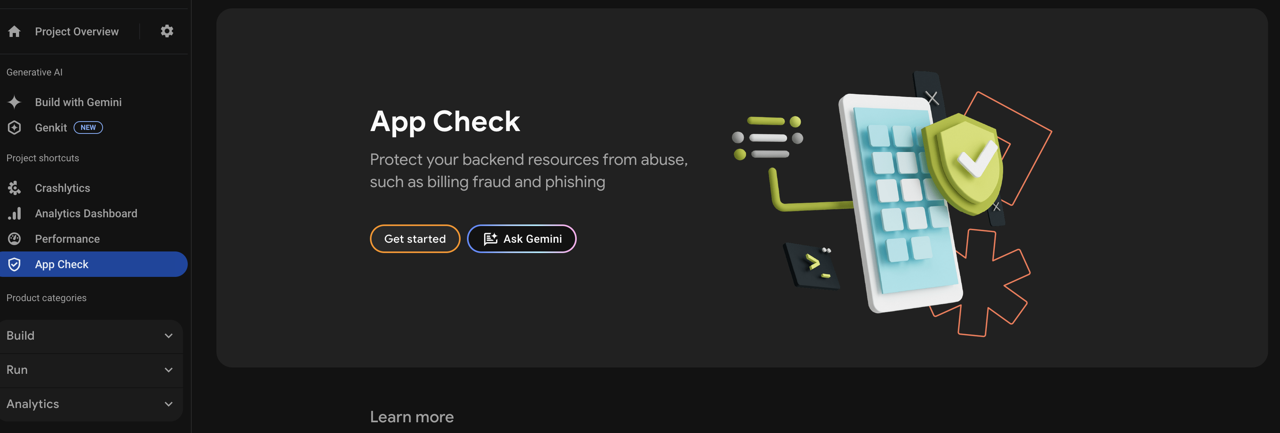
Click the Get started button to start setting up App Check.
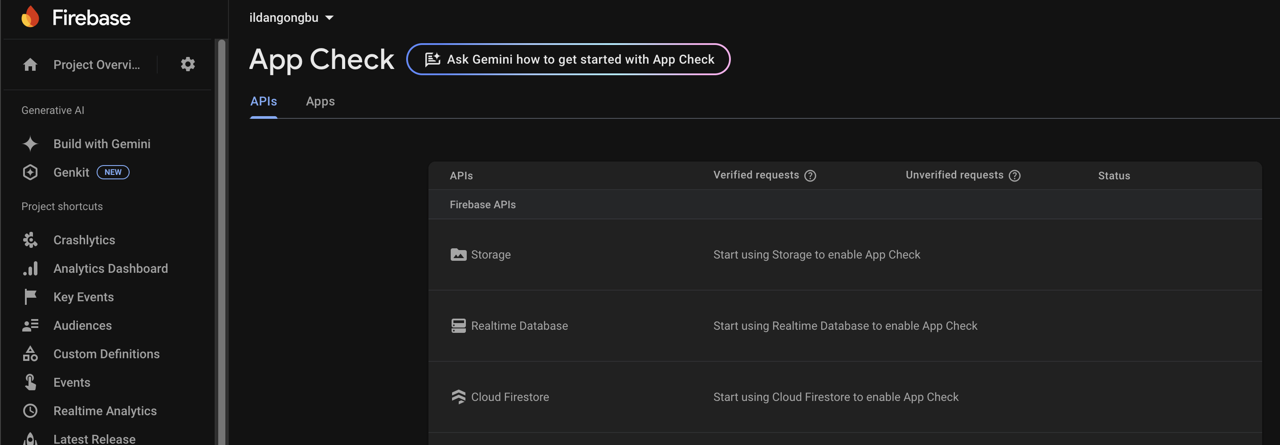
Select the Apps tab at the top, click the menu icon on the right side of Android in the list, and click Show details.
Then select Play Integrity and paste the previously copied App signing key certificate (SHA-256 certificate fingerprint) in the SHA-256 certificate fingerprint field.
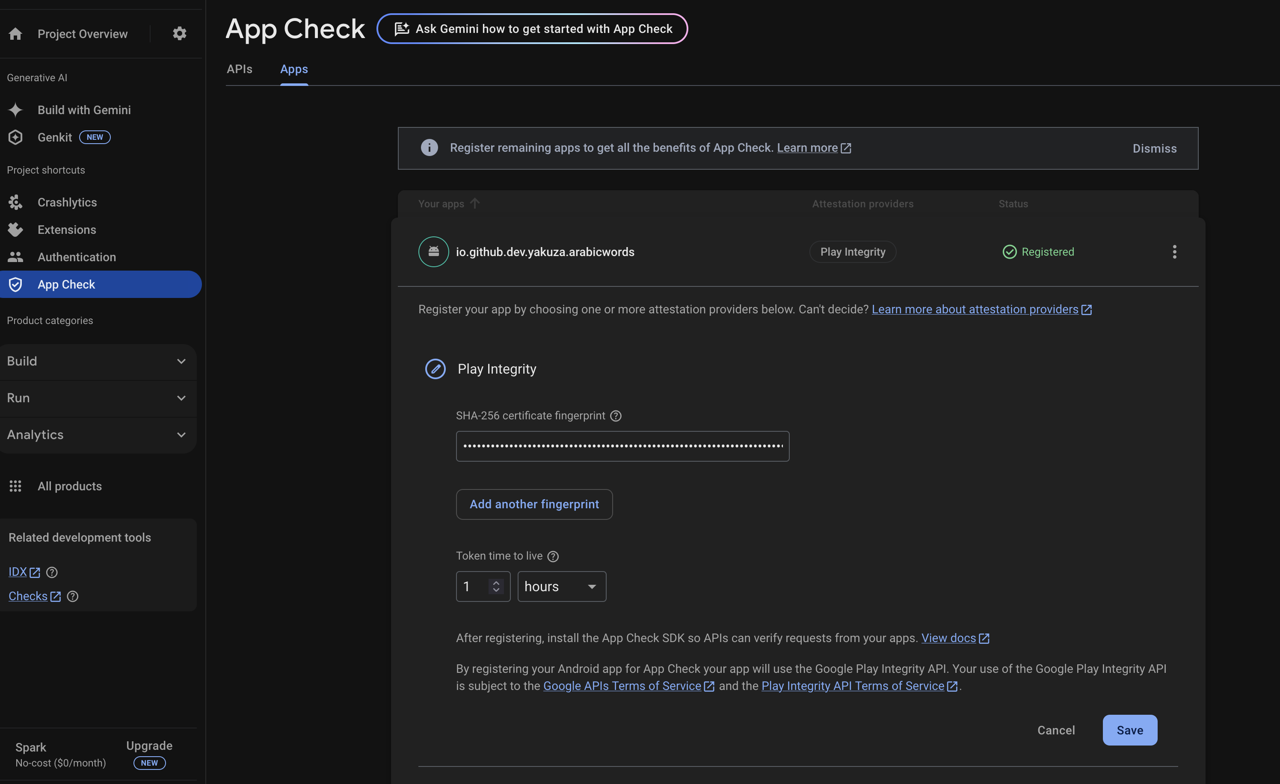
Then click Add another fingerprint and paste the previously copied Upload key certificate (SHA-256 certificate fingerprint).
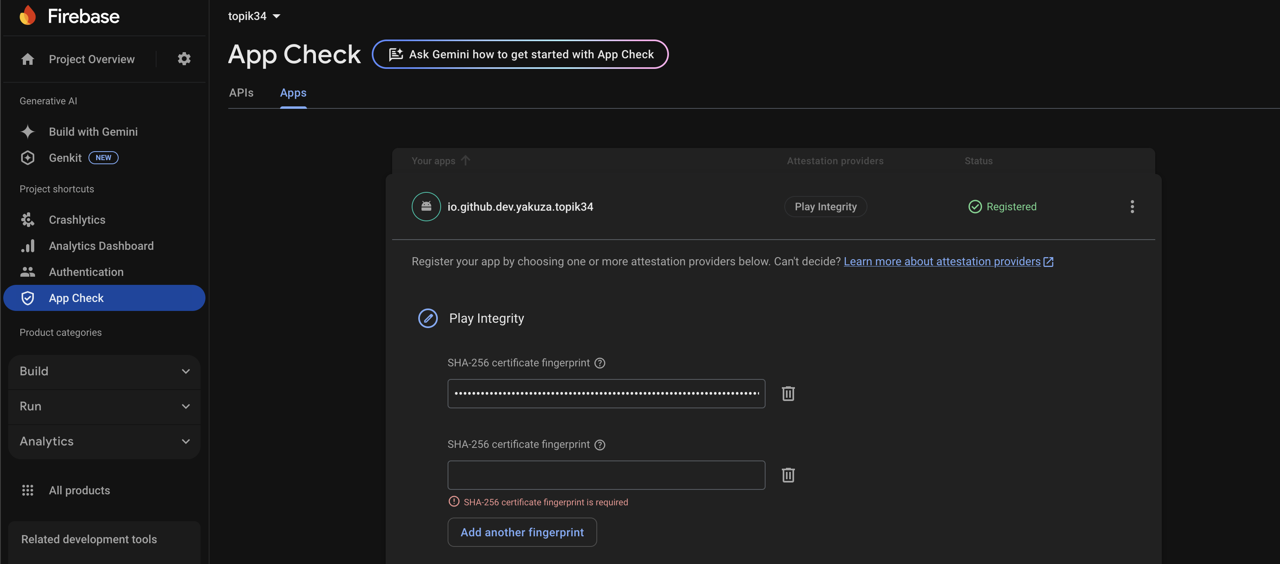
Finally, click the Save button to save the settings.
iOS Setup
Now set up App Check for the iOS app. Click the menu icon on the right side of the iOS app in the list and click Show details.
Then select DeviceCheck, upload the Key file previously downloaded from Apple Developer. Enter the Key ID and Team ID, then click the Save button to save the settings.
Applying App Check
Once App Check setup is complete, you can apply App Check to Firebase backend services. Select the APIs tab on the App Check page to see the list of Firebase backend services.
You can apply App Check by clicking the Enforce button next to each service. However, once App Check is applied, unverified clients will not be able to access that service, so it is recommended to apply it after all clients have activated App Check.
Conclusion
This concludes our guide on how to set up firebase_app_check in a Flutter project to use Firebase App Check. By using Firebase App Check, you can prevent unverified clients from accessing Firebase backend services, thereby strengthening your app’s security.
Was my blog helpful? Please leave a comment at the bottom. it will be a great help to me!
App promotion
Deku.Deku created the applications with Flutter.If you have interested, please try to download them for free.