Table of Contents
Introduction
Have you ever heard “It works on my machine!” on a team project? One of the most common causes of this problem is Node.js version mismatch.
When developers have different Node.js versions installed locally, dependency installation results can differ, builds can fail, or subtle runtime bugs can appear. This is especially critical in monorepo environments where multiple apps share the same Node.js runtime, making version consistency even more important.
This article introduces how to enforce Node.js versions across both local development and CI environments by combining .nvmrc, the engines field in package.json, and a custom Yarn Berry plugin.
Why Pin Your Node.js Version?
1. Security Vulnerability Response
Node.js periodically releases security patches. If a vulnerability discovered in a specific version is only patched on some developers’ machines, behavior can differ across development, staging, and production environments.
2. Build Output Differences Across Versions
Even with the same source code, build outputs can differ depending on the Node.js version. Common examples include native module compilation results, crypto module behavior, and fs API changes.
3. Dependency Compatibility
Even with identical package-lock.json or yarn.lock files, different Node.js versions can produce different installation results for optional dependencies or platform-specific packages.
Three Layers for Version Enforcement
Rather than relying on a single method, combining multiple layers provides more reliable version enforcement.
Layer 1: .nvmrc — The Single Source of Truth
The .nvmrc file sits at the project root and specifies the Node.js version to use for the project.
24.13.0Developers can switch to this version using the nvm use command:
$ nvm use
Found '/path/to/project/.nvmrc' with version <24.13.0>
Now using node v24.13.0 (npm v10.x.x)Adding an auto-switch script to your shell configuration (.zshrc, .bashrc) will automatically switch to the correct Node.js version when you enter the project directory.
Setting Up nvm Auto-Switch Scripts
Manually typing nvm use every time is tedious and easy to forget. Adding the following script to your shell configuration file will detect .nvmrc files and automatically switch Node.js versions when you cd into a directory.
Bash (~/.bashrc):
cdnvm() {
  command cd "$@" || return $?
  nvm_path="$(nvm_find_up .nvmrc | command tr -d '\n')"

  # Restore default version when moving to a directory without .nvmrc
  if [[ ! $nvm_path = *[^[:space:]]* ]]; then
    declare default_version
    default_version="$(nvm version default)"

    if [[ $default_version == "N/A" ]]; then
      nvm alias default node
      default_version=$(nvm version default)
    fi

    if [[ $(nvm current) != "$default_version" ]]; then
      nvm use default
    fi
  elif [[ -s "${nvm_path}/.nvmrc" && -r "${nvm_path}/.nvmrc" ]]; then
    declare nvm_version
    nvm_version=$(<"${nvm_path}/.nvmrc")

    declare locally_resolved_nvm_version
    locally_resolved_nvm_version=$(nvm ls --no-colors "$nvm_version" | command tail -1 | command tr -d '\->*' | command tr -d '[:space:]')

    if [[ "$locally_resolved_nvm_version" == "N/A" ]]; then
      nvm install "$nvm_version"
    elif [[ $(nvm current) != "$locally_resolved_nvm_version" ]]; then
      nvm use "$nvm_version"
    fi
  fi
}

alias cd='cdnvm'
cdnvm "$PWD" || exit
Zsh (~/.zshrc):
autoload -U add-zsh-hook

load-nvmrc() {
  local nvmrc_path
  nvmrc_path="$(nvm_find_nvmrc)"

  if [ -n "$nvmrc_path" ]; then
    local nvmrc_node_version
    nvmrc_node_version=$(nvm version "$(cat "${nvmrc_path}")")

    if [ "$nvmrc_node_version" = "N/A" ]; then
      nvm install
    elif [ "$nvmrc_node_version" != "$(nvm version)" ]; then
      nvm use
    fi
  elif [ -n "$(PWD=$OLDPWD nvm_find_nvmrc)" ] && [ "$(nvm version)" != "$(nvm version default)" ]; then
    echo "Reverting to nvm default version"
    nvm use default
  fi
}

add-zsh-hook chpwd load-nvmrc
load-nvmrc
With this script configured, it works as follows:
- When you navigate to a project directory containing
.nvmrc, it automatically switches to that version. - If the version isn’t installed, it automatically runs
nvm install. - When you navigate to a directory without
.nvmrc, it restores nvm’s default version.
However, .nvmrc alone has no enforcement power. Developers who haven’t set up the auto-switch script or who forget to run nvm use will still work with a different Node.js version.
Layer 2: The engines Field in package.json
You can declare the allowed Node.js version by adding the engines field to package.json.
{
  "engines": {
    "node": "24.13.0"
  },
  "engineStrict": true
}
For npm users, setting the engine-strict option in the .npmrc file at the project root will cause an error when the version doesn’t match during npm install:
# .npmrc
engine-strict=true
Without this setting, the engines field only outputs a warning and installation proceeds. You need engine-strict=true for it to be treated as an error that halts installation.
The engineStrict field in package.json has been deprecated since npm v3. The correct approach is to set engine-strict=true in the .npmrc file instead.
However, Yarn Berry (v2 and above) does not validate the engines field by default. The .npmrc settings don’t apply to Yarn Berry either. This is exactly why the next layer is needed.
Layer 3: Custom Yarn Berry Plugin — Real Enforcement
Yarn Berry provides a plugin system, and through the validateProject hook, you can inject custom validation logic before commands like yarn install are executed.
Plugin Code
.yarn/plugins/plugin-check-node.js:
module.exports = {
  name: 'plugin-check-node',
  factory: () => ({
    hooks: {
      validateProject(project) {
        const fs = require('fs');
        const path = require('path');

        // Yarn Berry's project.cwd returns a PortablePath (POSIX format).
        // On Windows, the leading "/" before the drive letter must be removed
        // for a valid path.
        let cwd = project.cwd;
        if (process.platform === 'win32' && /^\/[A-Za-z]:/.test(cwd)) {
          cwd = cwd.slice(1);
        }
        const nvmrcPath = path.join(cwd, '.nvmrc');
        let required;
        try {
          required = fs.readFileSync(nvmrcPath, 'utf8').trim();
        } catch (error) {
          if (error && error.code === 'ENOENT') {
            throw new Error(
              `\n\x1b[31mUnable to determine required Node version.\x1b[0m\n` +
                `The .nvmrc file was not found at: ${nvmrcPath}\n\n` +
                `Please create a .nvmrc file with the required Node version,\n` +
                `or ensure you are running the command in the correct project directory.\n`
            );
          }
          throw new Error(
            `\n\x1b[31mUnable to read required Node version from .nvmrc.\x1b[0m\n` +
              `Path: ${nvmrcPath}\n` +
              `Underlying error: ${error && error.message ? error.message : String(error)}\n`
          );
        }
        const current = process.versions.node;

        if (current !== required) {
          throw new Error(
            `\n\x1b[31mNode version mismatch!\x1b[0m\n` +
              `Required: ${required}\n` +
              `Current:  ${current}\n\n` +
              `Please run: nvm use\n`
          );
        }
      },
    },
  }),
};
What the Plugin Does
- Reads the required Node.js version from the
.nvmrcfile. - Compares it with the currently running Node.js version (
process.versions.node). - If the versions don’t match, it throws an error to halt command execution.
- Handles path compatibility for Windows environments.
Registering the Plugin
Register the plugin in .yarnrc.yml:
nodeLinker: node-modules

plugins:
  - .yarn/plugins/plugin-check-node.js
Result
Running yarn install with an incorrect Node.js version will output the following error:
Node version mismatch!
Required: 24.13.0
Current:  20.11.0

Please run: nvm use
This error occurs not only for yarn install but for every command run through Yarn (yarn build, yarn dev, etc.). In other words, no work can be done with the wrong version.
Unifying Versions in CI
Node.js versions need to be consistent not only in local development but also in CI (Continuous Integration) environments.
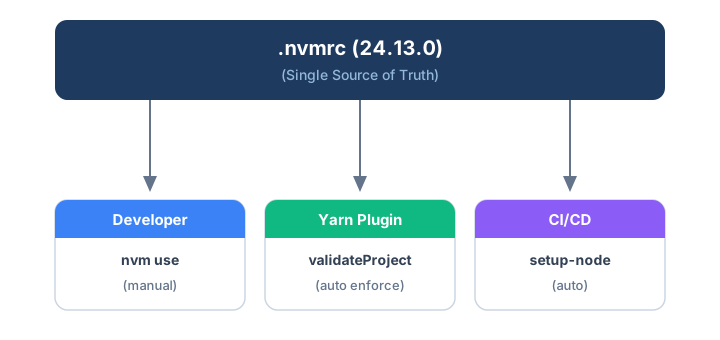
In GitHub Actions, you can directly reference the .nvmrc file through the node-version-file option of actions/setup-node. The setup-node action reads the version from .nvmrc (e.g., 24.13.0) and automatically installs that Node.js version, eliminating the need to hardcode the version in workflow files:
steps:
  - name: Setup node
    uses: actions/setup-node@v4
    with:
      node-version-file: '.nvmrc'
The node-version-file option supports file formats beyond .nvmrc, including .node-version and .tool-versions. The key point is that by using node-version-file instead of node-version, you don’t write the version number directly in the workflow YAML. This makes the .nvmrc file the Single Source of Truth for both local development and CI environments.
- Single Source of Truth: A principle of managing specific data or configuration values from only one source. When the same value is duplicated in multiple places, updates are easily missed. With a single source of truth, modifying just one place automatically reflects the change everywhere that references it. Here, the
.nvmrcfile serves as the single source of truth for the Node.js version.
In real projects, you can separate this setup into a reusable Composite Action for consistent use across all workflows.
# .github/actions/install_dependencies/action.yml
name: 'Install Dependencies'
runs:
  using: 'composite'
  steps:
    - name: Setup node
      uses: actions/setup-node@v4
      with:
        node-version-file: '.nvmrc'
    - name: Enable Yarn
      shell: bash
      run: corepack enable
    - name: Install dependencies
      shell: bash
      run: yarn install --frozen-lockfile
This way, when updating the Node.js version, you only need to modify the .nvmrc file, and both local and CI environments are automatically updated.
To learn more about workflow design in GitHub Actions, check out Improving Jest Action Performance and GitHub Actions Workflow to Restrict File Changes by Branch in a Monorepo.
Version Update Process
When you need to update the Node.js version (e.g., for a security patch), the following files need to be modified.
| File | Role |
|---|---|
.nvmrc | Specifies Node.js version for local devs + CI (Single Source of Truth) |
engines in package.json | Additional safeguard for npm users |
The key point is that you only need to modify the .nvmrc file. Since the plugin and CI configuration both reference .nvmrc, version management becomes very straightforward.
Architecture Overview
Key Takeaways
- Use
.nvmrcas the single source of truth — Design all tools to reference this file. - Ensure enforcement with a Yarn Berry plugin — Even if you forget
nvm use, working with the wrong version becomes impossible. - Reference the same source in CI — Use the
node-version-fileoption to read.nvmrcdirectly. - Consider Windows compatibility — Convert Yarn Berry’s PortablePath to native paths in the plugin.
- Update just one file — A single
.nvmrcchange updates both local and CI environments.
References
- Pinning Node Versions in Yarn Berry (GitHub Issue #1177)
- actions/setup-node — node-version-file option
- Node.js Security Releases (December 2025)
Was my blog helpful? Please leave a comment at the bottom. it will be a great help to me!
App promotion
Deku.Deku created the applications with Flutter.If you have interested, please try to download them for free.